
Home Office Internet Backup: Hardware Guide for 2026
Table of Contents
- Why Your Home Office Needs an Internet Backup Plan
- Automatic Internet Failover Hardware: The Core of Your Setup
- Step 1: Assess Your Connectivity Needs and Budget
- Step 2: Choose Your Backup Connection Type
- Step 3: Select a Dual-WAN Router with Failover Support
- Step 4: Configure Your Router for Automatic Failover
- Step 5: Securing Your Home Network from Cyber Threats
- Step 6: Add Power Redundancy for Your Networking Gear
- Frequently Asked Questions
Last Updated: September 5, 2026
A dropped video call or missed deadline can cost far more than a backup router. Securing reliable home office internet means building a system that automatically switches to a secondary connection when your primary ISP fails. At BACKUPMYFILESNOW, we help remote professionals source the hardware needed to close that gap, from dual-WAN routers to Starlink accessories. This guide walks through the practical steps to assess, buy, and configure a failover setup that works when you need it.

Why Your Home Office Needs an Internet Backup Plan
Most home office setups rely on a single internet connection, which means a single point of failure. When that cable modem or fiber line goes down due to weather, construction, or an ISP outage, your work stops completely. The Federal Communications Commission's guide on network resilience notes that broadband reliability is a growing concern for remote workers who depend on continuous connectivity for their livelihood.
Downtime costs more than lost productivity; missed calls and failed uploads damage your reputation. A backup plan eliminates this risk with a redundant data path.
The core concept is redundancy: maintain two connections and use hardware that automatically routes traffic through the backup when the primary fails, transitioning in seconds.
Automatic Internet Failover Hardware: The Core of Your Setup
Automatic failover hardware monitors your primary connection and switches to a backup on outage. The most critical piece is a dual-WAN router with ports for two connections and firmware to manage both.
Dual-WAN routers handle two connections simultaneously, continuously checking primary health with test packets. When packets fail or latency spikes, traffic reroutes to the backup port.
This hardware is the foundation of any backup strategy; without it, you would manually reconfigure during an outage, defeating the purpose of seamless backup.
Step 1: Assess Your Connectivity Needs and Budget
Before buying, list your non-negotiable activities, video conferencing, VoIP, cloud files, email, each with different bandwidth and latency needs.
Video calls need reliable uploads and low latency; file transfers need throughput. Estimate bandwidth by adding critical application demands, then choose a backup meeting that baseline.
Budget drives decisions; hardware ranges from consumer routers to enterprise appliances. Weigh hourly downtime cost against monthly backup connection fees.
Step 2: Choose Your Backup Connection Type
Your backup is the second data path when the primary fails. The two practical options are cellular and satellite, each with trade-offs in cost, latency, and reliability. The decision hinges on your tolerance for fees, data caps, and the failure modes you must survive.
Cellular (4G/5G) Modems and Hotspots
Cellular backup is popular for its availability and ease of setup. A 4G/5G modem connects to your dual-WAN router via ethernet. The main advantage is speed, 5G can deliver 100-300+ Mbps depending on carrier and signal.
Drawbacks are data caps and congestion. A typical consumer plan offers 50 GB for ~$50, then throttles to 1-5 Mbps, insufficient for video. Business plans with 100+ GB cost $80-$150. During regional outages, towers overload, causing latency spikes even with strong signals.
For a home office, choose a modem supporting carrier aggregation and ideally 5G standalone for lower latency. Consumer hotspots often lack external antenna ports, limiting signal improvement. Dedicated modems from Cradlepoint or Peplink allow adding directional antennas, a common fix for weak coverage.
Starlink for Home Office Redundancy
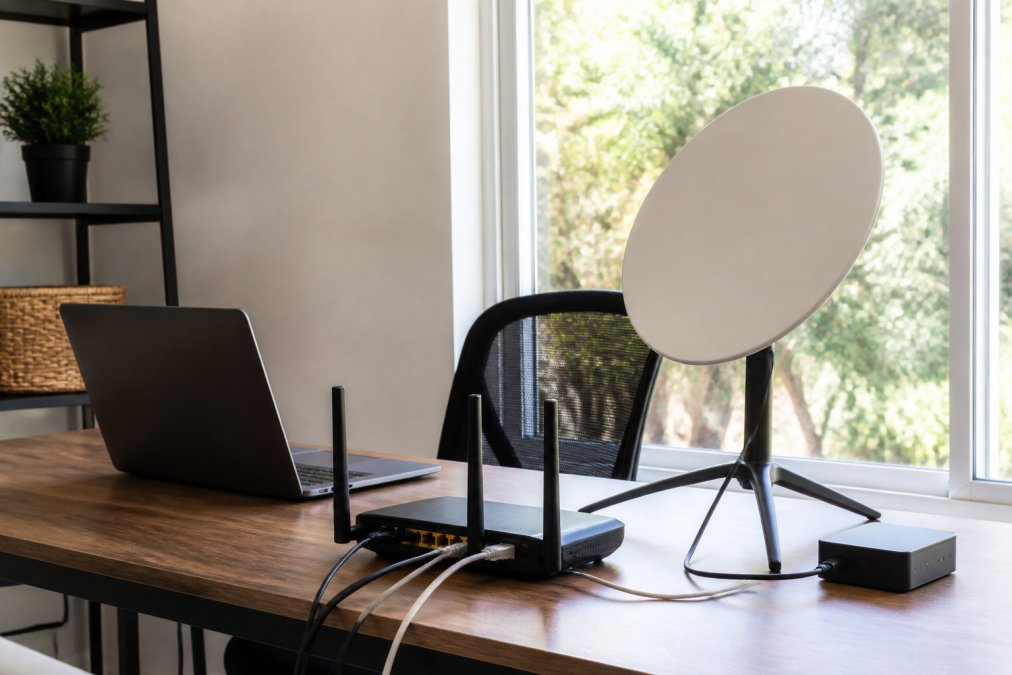
For rural offices with weak cellular, Starlink offers a compelling backup. Its low-earth-orbit satellites deliver 25-50 ms latency, viable for video calls, almost anywhere with a clear sky view.
Hardware costs more than cellular: the standard kit is $499 with a $120 monthly residential fee. There is no hard data cap, but Fair Use policy deprioritizes heavy users during peak hours, potentially slowing your backup.
For backup-only use, paying $120 monthly for an idle line is steep, but it may be the only option in remote areas. The 'Roam' plan at $50 monthly is pausable but deprioritized. BACKUPMYFILESNOW stocks Starlink Standard Satellite Internet Kits and accessories like the Starlink Mini Cigar Power Cable.

Cost-Benefit Analysis: What Is an Hour of Downtime Worth?
Calculate your hourly downtime cost to weigh monthly fees against ROI. At $100/hour, a 4-hour outage costs $400. A $50/month cellular plan pays for itself by preventing one such outage yearly.
| Backup Type | Best For | Key Drawback | Typical Monthly Cost | Typical Setup |
|---|---|---|---|---|
| 4G/5G Modem (Consumer) | Suburban and urban areas | Data caps, congestion | $50-$80 | Plug into router WAN port |
| 4G/5G Modem (Business) | Urban areas needing priority data | Higher monthly fee | $100-$150 | Plug into router WAN port |
| Starlink Residential | Rural areas with no cell coverage | Higher hardware cost ($499) | $120 | Mount dish, run cable to router |
| Starlink Roam | Seasonal or occasional backup | Deprioritized traffic | $50 (pausable) | Mount dish, run cable to router |
Step 3: Select a Dual-WAN Router with Failover Support
Not every router with two ports supports failover. You need true dual-WAN firmware with failover and ideally load balancing, failover switches entirely to backup, while load balancing uses both connections for throughput.
Look for routers with configurable health-check intervals and failure thresholds. Models that ping specific IPs or DNS servers are more reliable than simple link-status checks.
A router supporting both failover and basic load balancing offers flexibility, use failover for stability, load balancing for extra bandwidth on large downloads.
Step 4: Configure Your Router for Automatic Failover
Configuration is where setups fail. Most dual-WAN routers have a "WAN" or "Dual WAN" admin section to assign primary and backup ports.
- Connect your primary modem to the router's WAN1 port and your backup modem to the WAN2 port.
- Access the router's admin interface and locate the dual-WAN or failover settings.
- Set WAN1 as the primary connection and WAN2 as the backup.
- Configure the health-check method, typically pinging a reliable IP address like a public DNS server.
- Set the failure detection threshold, usually after 2-3 failed pings.
- Enable automatic failback, which returns traffic to the primary connection once it recovers.
- Test the failover by unplugging your primary modem and confirming your devices stay online.
Step 5: Securing Your Home Network from Cyber Threats
Adding a backup connection expands your attack surface; a second WAN is another entry point for attackers if unprotected.
Enable the firewall on your dual-WAN router; many are disabled by default. Ensure it is active for both WAN interfaces.
Use WPA3 if supported, otherwise WPA2 with a strong password. Change the default administrator password, which is widely known.
Use a VPN for work traffic to encrypt data between your device and employer's network, especially important when backup routes through public cellular infrastructure.
Step 6: Add Power Redundancy for Your Networking Gear
An internet backup plan needs power redundancy. A UPS provides battery backup for networking gear, riding out brief outages or allowing graceful shutdown during longer ones.
Sizing Your UPS Correctly
UPS capacity is measured in VA or Wh. A typical stack (modem 10-15W, router 15-20W, switch 5-10W) draws 30-45W; a 600VA/360Wh unit runs it 60-90 minutes. Adding a Starlink dish (50-75W) requires ~1000VA/600Wh for the same runtime.
For extended outages, a portable power station is better. The Powdeom 150W Portable Power Station from BACKUPMYFILESNOW powers a router and modem for hours. Pair with a Starlink power cable for satellite backup. For 8-12 hours, choose a 500-1000Wh station.

Automated Monitoring and Alerting
A silent backup is useless if you do not know it is running. Configure your router to send email or push notifications via SNMP or built-in alerting. Peplink and TP-Link Omada support email alerts on WAN link changes.
For granular monitoring, run a script on a Raspberry Pi pinging your gateway every 30 seconds, logging failures and sending alerts via Pushover or email. This provides an outage history and confirms failover works.
Latency and Jitter Considerations for VoIP and Video Calls
Your backup must meet real-time application quality needs. Zoom and Teams recommend at least 3 Mbps upload for HD, but latency and jitter matter more. High jitter (above 30 ms) causes choppy audio and frozen video even on fast connections.
Cellular connections suffer jitter spikes during congestion; satellite can micro-drop during handoffs. Your router should support per-session failover, keeping an active call on one connection until it fully drops, avoiding disruption.
Frequently Asked Questions
Can I use Starlink as a backup for my home office internet?
Yes, Starlink works well as a backup connection for a home office, especially in rural areas where wired options are limited. To use it for automatic failover, you need a dual-WAN router that supports failover. Plug your primary ISP into one WAN port and the Starlink router into the other. The router will then switch traffic to Starlink automatically if your main connection drops, which is a practical use of Starlink for home office redundancy.
What is the best backup Wi-Fi option for home use?
A 4G or 5G cellular modem or hotspot is often the best backup option because it is portable, easy to set up, and does not require a fixed installation. For a more permanent solution with higher data allowances, a dedicated cellular gateway with an external antenna provides stronger signal and reliability. Your choice depends on your data usage and whether you need low latency for video calls. Look for a plan with enough data to cover your workday.
What hardware is required for automatic internet failover?
The core piece of hardware is a dual-WAN router that supports automatic failover. This router needs two internet connections: your primary one and a backup, such as a cellular modem or a second broadband line. Many routers also support USB cellular modems for this purpose. You will also need the necessary cables and, ideally, a UPS to keep the router and modem powered during an outage.
How do I secure my home network against cyber threats when adding backup hardware?
Start by changing the default admin password on your new router and any connected devices. Enable WPA3 encryption on your Wi-Fi network if all your devices support it; otherwise, use WPA2. Ensure the router's firewall is active and keep its firmware updated. For an extra layer of protection, consider using a VPN for work-related traffic, and disable remote management features you don't need.